Your Cart is Empty


The Reference Guide for Essential Oils app is the portable, user-friendly guide to Young Living®* essential oils and products. You’ll get quick information on-the-go to support better health and an essential oil lifestyle.
Get the basic app for just $4.99, now updated with new products introduced at the 2024 convention. These blends are fully integrated in the “Personal Guide” with hundreds of health conditions. Additional product information is being added and will be updated shortly.
With an additional subscription—at an amazing monthly ($0.99) or yearly ($9.99) rate—you’ll also receive integrated information on Young Living® supplements and personal care items, including new 2024 products. Plus, with “Everyday Essentials” tips and recipes, you can confidently incorporate EOs into all aspects of daily living. A subscription also offers a new personal inventory feature for keeping track of oils you have on hand.
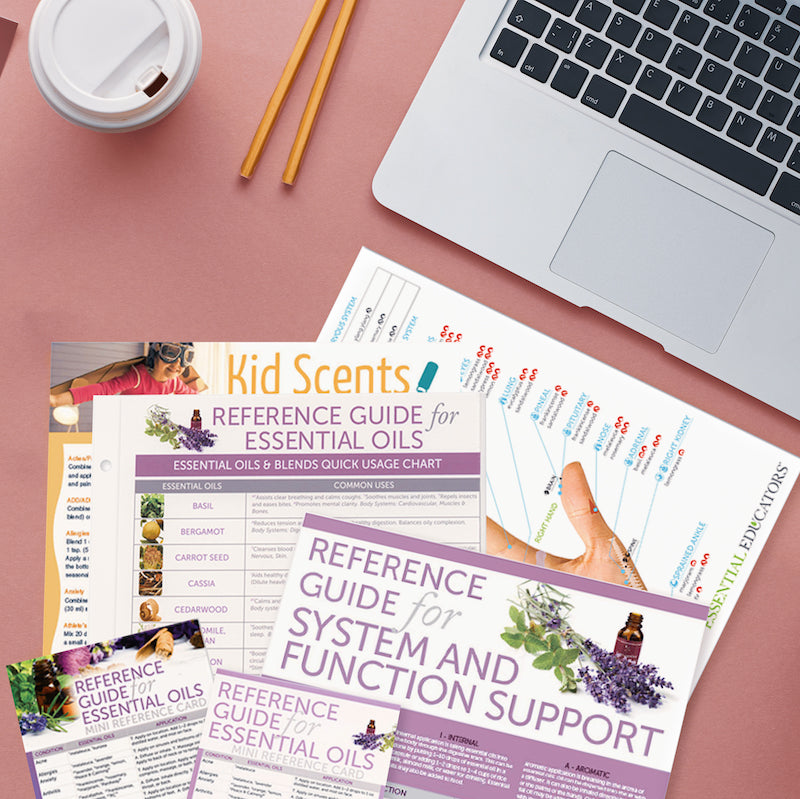
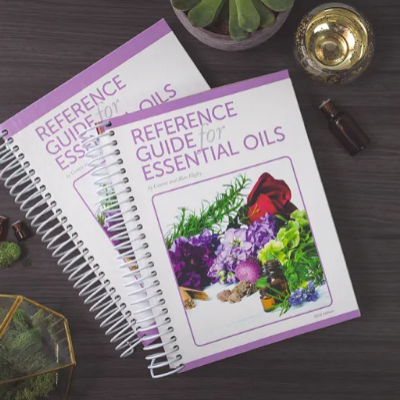
Both the Reference Guide basic app and the subscription enhancement draw from the authoritative Reference Guide for Essential Oils, by Connie and Alan Higley. Use the app’s convenient search, navigation, and note-taking features to quickly find and confidently use single oils and blends for health and wellness solutions.
This app will become your go-to source for personal use and for sharing your love of essential oils. It provides essential oil application instructions—including for ear, hand, and foot points—and information about body systems affected by each oil, the oil’s aromatic influence, and safety data.
For over 30 years, our team has:
Download the Reference Guide app today!


*Abundant Health™ is a true third-party company that does not profit from the sales of essential oils and is not sponsored by, affiliated with, or endorsed by any essential oil company. We offer this material as a third-party, unbiased presentation about oils and products sold by one of the leading essential oil suppliers and producers in the world. Product names throughout this app are trademarks or registered trademarks of Young Living® Essential Oils. Abundant Health™ is not sponsored by, affiliated with, or endorsed by Young Living®Essential Oils.
DISCLAIMER
The information contained in this app is not intended to diagnose, treat, cure, prevent, or otherwise reduce the effects of any disease or ailment. Consult a licensed, qualified health care provider for diagnosis, medical care, and treatment.
Price are in U.S. Dollars (USD). Pricing in other currencies and countries may vary and actual charges may be converted to your local currency depending on the country of residence.
Subscription payment will be charged to your iTunes account at confirmation of purchase. Your account will be charged for renewal within 24 hours before the end of the current period. Your subscription will automatically renew unless cancelled at least 24 hours before the end of the current period. You can cancel at any time within your iTunes account settings. Any unused portion of a free trial period, if offered, will be forfeited when you purchase a subscription to the app. You can manage or turn off the auto-renew option in your Apple ID account settings at any time after purchase.
For additional information please see:
https://www.abundanthealth4u.com/privacy-policy
https://www.abundanthealth4u.com/terms